Installing a SimpliSafe security system doesn’t require a technician visit or years of electrical experience. Most homeowners can complete a SimpliSafe installation in under an hour, turning a living room corner into a monitored fortress without cutting drywall or running hidden wiring. This guide walks through the entire SimpliSafe installation process, from unpacking the box to arming the system for the first time. Whether you’re protecting a studio apartment or a multi-story home, you’ll find practical steps to get your system running reliably. SimpliSafe’s wireless design keeps setup straightforward, but a little planning upfront saves frustration and ensures full coverage where it counts.
Table of Contents
ToggleKey Takeaways
- SimpliSafe installation can be completed in under an hour without professional help, using wireless sensors and adhesive strips that require no cutting or hidden wiring.
- Before starting your SimpliSafe installation, verify all components, plan sensor placement at entry points and interior rooms, and position the base station centrally with strong Wi-Fi connectivity.
- Test each sensor immediately after mounting by opening/closing doors and walking past motion detectors to catch placement issues and battery failures before arming the system.
- Name sensors clearly in the app, configure your Wi-Fi connection, and allow auto-discovery to register all wireless sensors within radio range of the base station.
- Optimize coverage by combining entry sensors on doors and windows with motion detectors on each floor, relocating sensors away from heat sources and pets, and testing your system monthly to maintain reliability.
Pre-Installation: What You Need to Know Before Getting Started
Unboxing and Inventory Check
When your SimpliSafe package arrives, resist the urge to rush setup. Lay out every component on a clean surface and verify the contents against the packing list. A complete system typically includes a base station (the hub that communicates with monitoring centers and your smartphone), entry sensors for doors and windows, a keypad, and motion detectors. Count the sensors, check battery compartments for pre-installed or included batteries, and inspect cables for any damage incurred during shipping.
The base station is the brain of your system, make sure it’s included and functional before moving forward. Test basic responsiveness by pressing the power button: you should see LED lights activate. Check that all sensor housings are intact and that adhesive strips or mounting hardware aren’t damaged. If anything looks compromised, contact SimpliSafe support before installation.
Planning Your System Layout
Before mounting a single sensor, walk through your home and identify entry points: main doors, garage doors, windows on ground floors or easily accessible upper floors, and any sliding glass doors. Mark these spots on a sketch or mental map. SimpliSafe sensors are wireless, so placement is flexible, but coverage matters. A motion detector in the hallway won’t catch an intruder entering through an unmonitored back door.
Consider the base station’s placement carefully. It needs reliable Wi-Fi connectivity and a central location for radio communication with sensors (most SimpliSafe sensors operate within 100 feet of the base station in open space: walls reduce range). Avoid placing it in a closet or basement corner. A kitchen counter, hallway shelf, or living room table works well. Note the nearest power outlet, the base station requires a plug, not battery power.
Think about motion detector placement too. Sensors should cover common intrusion paths and interior rooms but avoid pointing directly at heat sources (heating vents, sunlight through windows) or pet areas if you have animals. If you’re protecting a two-story home, motion sensors on each level provide better coverage than a single upstairs placement.
Step-by-Step Installation Process
Start with the base station. Plug it into a standard 110V outlet, no special wiring required. Wait for the startup sequence: you’ll see LED indicators cycle through colors (typically blue, then white). This process takes a minute or two. Once stable, note the Wi-Fi network name and password displayed on the device or in the SimpliSafe app. You’ll need these to connect later.
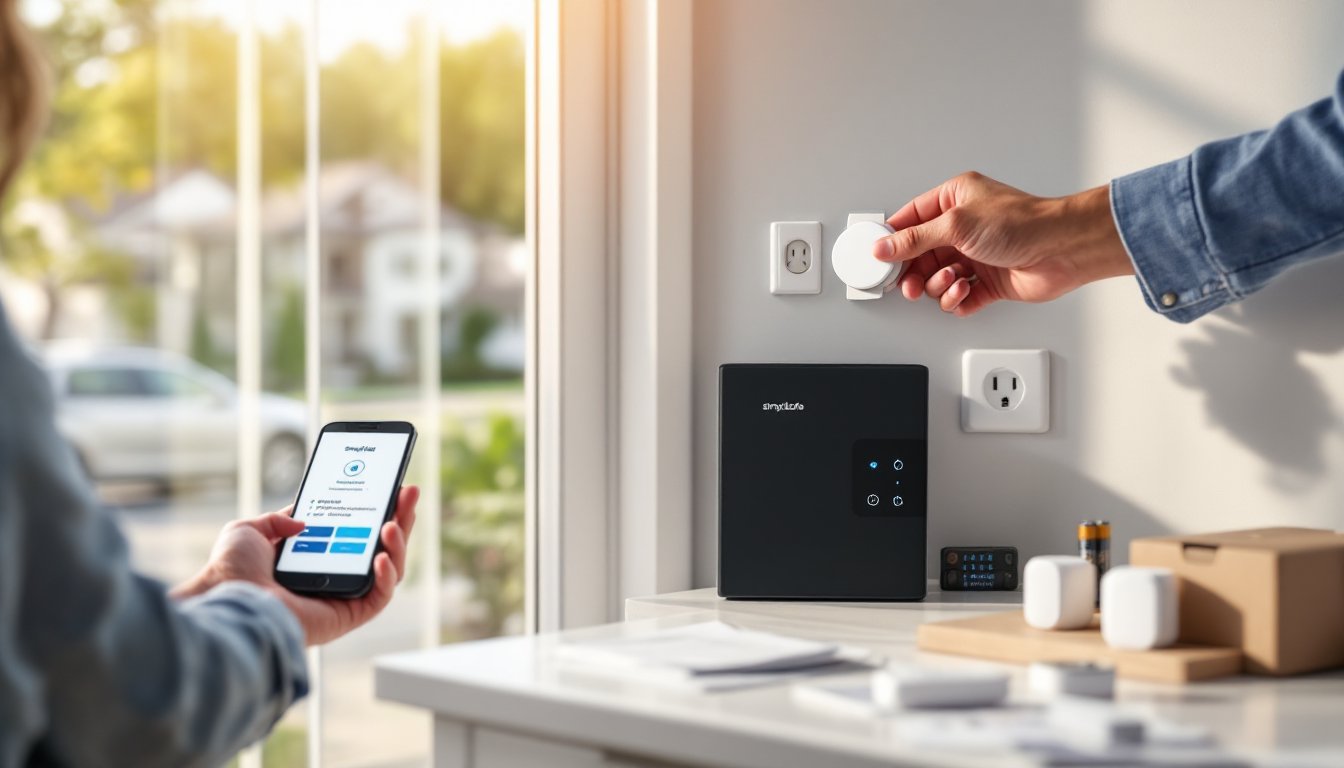
Mount entry sensors next. Each door and window sensor consists of two parts: a wireless transmitter (the larger piece) and a magnetic reed switch. The transmitter mounts on the moving part (door or window frame), and the magnet attaches to the fixed frame. Use the included adhesive strips for a damage-free installation on painted walls or wood trim. For renters or temporary setups, adhesive strips are ideal. If you prefer screwing directly into trim, small 3/4-inch wood screws work with the provided drill holes.
Align the magnet and transmitter carefully, they need to be within about 1/4 inch of each other when the door or window closes. Test the connection by opening and closing the door: the sensor should trigger an alert in the SimpliSafe app. Don’t skip this step: a misaligned sensor defeats your coverage.
Install the keypad. Choose a spot near your main entry, somewhere visible and easy to reach when you come home. The keypad runs on AA batteries (usually 4 of them), which last roughly 12 months with normal use. Insert batteries, then mount using the adhesive backing or the included bracket screws. Verify it powers on by pressing a key: you should see the screen light up.
Place motion detectors strategically. Mount these on walls 4-6 feet above the floor in interior rooms where an intruder would likely move. Hallways, living rooms, and upstairs landings are prime spots. Avoid corners or direct sunlight. Motion sensors operate on batteries too, SimpliSafe typically uses AA or AAA batteries, depending on the model. Check your specific sensor type and install the correct batteries. Stick the adhesive backing to the wall, or use the included bracket. A motion sensor pointing down a hallway from the living room toward the bedrooms covers a larger area than one mounted in a bedroom corner.
Work methodically through your home. Don’t mount all sensors at once and then test, do a few, test, and adjust placement if needed. Walls, mirrors, and reflective surfaces can cause false triggers or dead zones, and you’ll want to catch these before arming the system for real.
Connecting and Activating Your System
Download the SimpliSafe app on your smartphone and create an account or log in if you already have one. The app is your command center for arming, disarming, receiving alerts, and managing sensor details. Open the app and look for the option to add a new system. You’ll be prompted to scan a QR code on the base station or enter a system identifier manually. The base station displays this code on its screen during initial setup.
Connect the base station to your home Wi-Fi network. The app walks you through this process, you’ll select your network name, enter your Wi-Fi password, and wait for the base station to establish a connection. Watch for LED confirmation (usually a solid light indicating successful connection). Poor or unstable Wi-Fi will cause missed alerts and sensor drops, so make sure your router is reasonably close and the signal is strong where the base station sits.
Once Wi-Fi is live, the app will auto-discover your sensors. Each sensor should appear in the app within a minute or two of powering it on. If a sensor doesn’t show up, remove its battery, wait 10 seconds, and reinsert it. Make sure the base station is within radio range. If the sensor still doesn’t register, try repositioning the base station slightly, sometimes a few feet makes a difference.
Name your sensors logically: “Front Door,” “Living Room Motion,” “Master Bedroom Window,” and so on. This labeling prevents confusion later and makes alerts clear. In the app, you’ll assign each sensor to a zone and set whether it’s an entry point or motion detection. Most door and window sensors default to “entry” mode, which is correct. Verify that motion sensors are marked as motion detectors.
Decide on monitoring. SimpliSafe offers self-monitoring (you respond to alerts) or professional monitoring (SimpliSafe staff dispatch police if an alarm triggers). Professional monitoring adds a monthly fee but provides 24/7 oversight. Review the options in the app and choose what fits your needs and budget.
Testing and Troubleshooting Common Issues
Before arming your system for real threats, run a full test. Open and close every door and window while watching the app for sensor responses. Delays of a second or two are normal: delays of more than 5 seconds suggest a connectivity issue. Walk past motion sensors with your hand raised and confirm they trigger in the app. This dry run catches placement problems and battery failures before you depend on the system.
Common issue: A sensor doesn’t appear in the app. First, confirm the sensor has fresh batteries and power is on (many SimpliSafe sensors have a small LED that blinks when active). Check that the base station is within radio range, move it slightly closer if the sensor is mounted far away. Restart the base station by unplugging it for 30 seconds, then plugging it back in. Restart the app as well. If the sensor still doesn’t register after these steps, contact SimpliSafe support: a defective unit may need replacement.
Weak Wi-Fi connection. If the base station keeps dropping off your network, move your router closer or reposition the base station to a more central location. Avoid metal filing cabinets, large water tanks, or microwave ovens nearby, they interfere with Wi-Fi signals. Switching your router to the 2.4 GHz band (rather than 5 GHz) sometimes improves SimpliSafe compatibility, since some older SimpliSafe models prioritize 2.4 GHz.
False motion alarms. Motion sensors occasionally trigger from pets, ceiling fans, or drafts. Review sensor placement, ensure it’s not pointed at a vent, window with moving curtains, or your pet’s favorite corner. Adjust the angle or sensitivity if your model allows. If a particular sensor remains problematic, consider relocating it to a less sensitive area or removing it if coverage isn’t critical there.
Battery warnings. The app alerts you when sensor batteries are low. Replace them promptly: a dead sensor is useless. Keep spare AA and AAA batteries on hand, they’re cheap and you’ll thank yourself when the 2 AM low-battery warning arrives.
Once testing is complete and all sensors respond reliably, you’re ready to arm the system. Congratulations, you’ve installed professional-grade home security without a technician bill or hidden wiring.
Optimizing Your SimpliSafe for Maximum Protection
A working SimpliSafe system is good: an optimized one is better. Start by reviewing your sensor coverage gaps. Walk through your home at night with the lights off and imagine where an intruder might enter. Are there windows you missed? Sliding glass doors? Garage side doors? Add sensors to these blind spots if your system plan didn’t include them initially.
According to smart home device reviews on CNET, wireless security systems like SimpliSafe benefit from a layered approach. Entry sensors catch forced entry, but motion detectors catch intrusion once someone’s inside. Combine both types for maximum coverage. If you have a garage, consider mounting a door sensor on the garage entry to the house itself, not just the garage overhead door.
Configure automation rules in the app. Set the system to arm automatically when you leave (geofencing), or schedule it to arm at 10 PM every night. Disarming reminders prevent accidentally triggering the alarm when you come home. Some users create a “guest” mode that disables motion sensors but keeps door alarms active, useful when family visits.
Placement tweaks improve reliability. Moisture and dust reduce battery life, so keep sensors away from bathrooms and dusty corners. In cold climates, check sensors seasonally, battery performance drops in freezing temperatures, so replace batteries more frequently in winter. Motion sensors in basements or garages may trigger false alarms from condensation or rapid temperature changes: relocate them if this happens repeatedly.
Final optimization: test your system monthly. Disarm it, then open a door or trigger a motion sensor to confirm alerts work. This habit catches battery failures or connectivity drifts before they compromise your security. Product reviews on Tom’s Guide consistently highlight that user testing catches issues professional installers might miss. Take 10 minutes quarterly to keep your SimpliSafe sharp.
Consider adding a siren add-on if your model supports it. An extra loud alarm deters intrusion and alerts neighbors in case you’re away. Check Digital Trends for the latest SimpliSafe accessory reviews to see what pairs well with your base model. SimpliSafe allows stacking of sensors and sirens, so expansion is straightforward if you decide to upgrade coverage later.