A standing desk solves part of the office puzzle, but without the right accessories, you’re setting yourself up for discomfort, poor posture, and wasted productivity. Hunching over a monitor, reaching awkwardly for your keyboard, or standing for eight hours straight on a hard floor isn’t just uncomfortable, it’s a recipe for back pain and fatigue. The good news: small investments in standing desk accessories transform your workspace into an ergonomic haven. Whether you’re upgrading a home office or fine-tuning an existing setup, the right combination of monitor supports, keyboard solutions, and comfort accessories makes the difference between a standing desk that feels great and one that gathers dust next to your old chair.
Table of Contents
ToggleKey Takeaways
- Standing desk accessories are essential functional tools that prevent chronic pain, repetitive strain injuries, and poor posture by positioning your monitor at eye level and keeping input devices within easy reach.
- A quality monitor arm ($40–$300), ergonomic keyboard ($60–$200), and anti-fatigue mat ($50–$150) form the foundation of a comfortable standing desk setup and cost less than a week of coffee runs.
- Proper standing desk ergonomics require your monitor at eye level, elbows at 90 degrees, and wrists floating just above the keyboard surface—use external keyboards and mice with laptop stands to achieve this alignment.
- Anti-fatigue mats that are at least ½-inch thick encourage subtle micro-movements and improve circulation, while footrests add layered comfort by allowing you to shift weight between feet throughout the day.
- Building an ergonomic standing desk works best when combined with movement habits: shift your weight every 15–20 minutes, stretch hourly, and consider alternating between sitting and standing to maximize comfort and focus.
- Most standing desk users discover their ideal accessory setup within a few weeks and should start with a monitor arm and mat, then add keyboard solutions and footrests based on how their body responds.
Why Standing Desk Accessories Matter for Your Home Office
Standing desks are only as good as the setup around them. A desk without proper accessories forces your body into awkward positions, craning your neck down at a laptop screen, reaching across the desk for your mouse, or locking your knees while standing in place. These bad habits develop quietly and then announce themselves as chronic neck pain, wrist strain, or foot soreness.
The American Chiropractic Association emphasizes that proper desk ergonomics reduce the risk of repetitive strain injuries and musculoskeletal problems. Standing desk accessories aren’t luxuries: they’re functional tools that position your monitor at eye level, keep your keyboard and mouse within easy reach, and reduce the pressure on your feet and lower back. A properly configured standing desk can actually boost focus and energy, when you’re not thinking about pain, you’re thinking about your work.
The investment is modest. A quality monitor arm, a basic anti-fatigue mat, and an ergonomic keyboard can cost less than a week’s worth of coffee runs, and they last for years. The payoff comes in reduced physical strain, better posture during the day, and fewer excuses to abandon your standing setup because it feels bad.
Essential Monitor and Screen Supports
Your monitor is the anchor of your ergonomic setup. If it’s too low, too far, or at the wrong angle, no amount of other adjustments will fix the strain. Monitor and screen supports do three critical jobs: they raise your display to eye level, they free up desk surface, and they allow you to angle the screen for your preferred viewing position.
Monitor Stands and Arms
A monitor arm is a single pivot point that can transform your workspace. These are articulated supports that clamp or bolt to your desk and extend to hold your monitor (or monitors) at adjustable heights and angles. VESA compatibility matters here, that’s the standardized hole pattern on the back of modern monitors. Most arms support monitors between 17 and 32 inches and can handle weights from 10 to 35 pounds, depending on the model.
There are two main types: single-monitor arms (simpler, cheaper, typically $40–$150) and dual-monitor arms (more complex engineering, usually $120–$300). If you’re running a single 24-inch or 27-inch display, a basic articulating arm works well. If you’re stacking two monitors side-by-side or one above the other, a dual-arm setup gives you independent height and tilt control for each screen.
The mechanism matters. Look for friction-based arms with smooth adjustment, they hold position without motorization and work reliably for years. Gas-spring arms are lighter and easier to adjust but add cost and occasional re-tensioning. Mount the arm on the non-dominant side of your desk so your mouse hand stays free and the clamp doesn’t interfere with keyboard space.
Laptop Stands and Risers
Laptops are deceptively ergonomic disasters. The screen and keyboard are fused into one unit at a fixed angle, forcing you to either stare down at the keyboard or lean back to see the screen. A laptop stand separates these problems by raising the screen to eye level, while you pair it with an external keyboard and mouse.
Fixed risers ($20–$60) are simple metal or wood platforms that sit on your desk and tilt your laptop at a fixed angle. They’re compact and sturdy, but inflexible. Adjustable stands ($40–$150) let you dial in the exact height and angle using a friction hinge or slider mechanism. For a standing desk that you might adjust multiple times per day, an articulating laptop arm (similar to a monitor arm but lighter-duty) gives you the flexibility to move your laptop in and out of the way.
The catch: raising your laptop means you must use an external keyboard and mouse or you’ll crane your neck. Don’t fight this. A compact wireless keyboard and trackpad or mouse complete the setup and make switching between sitting and standing seamless. This approach is becoming standard in home offices because it works, your screen stays at eye level, your arms are at comfortable typing height, and you avoid the hunched posture that laptops encourage.
Keyboard and Input Device Solutions
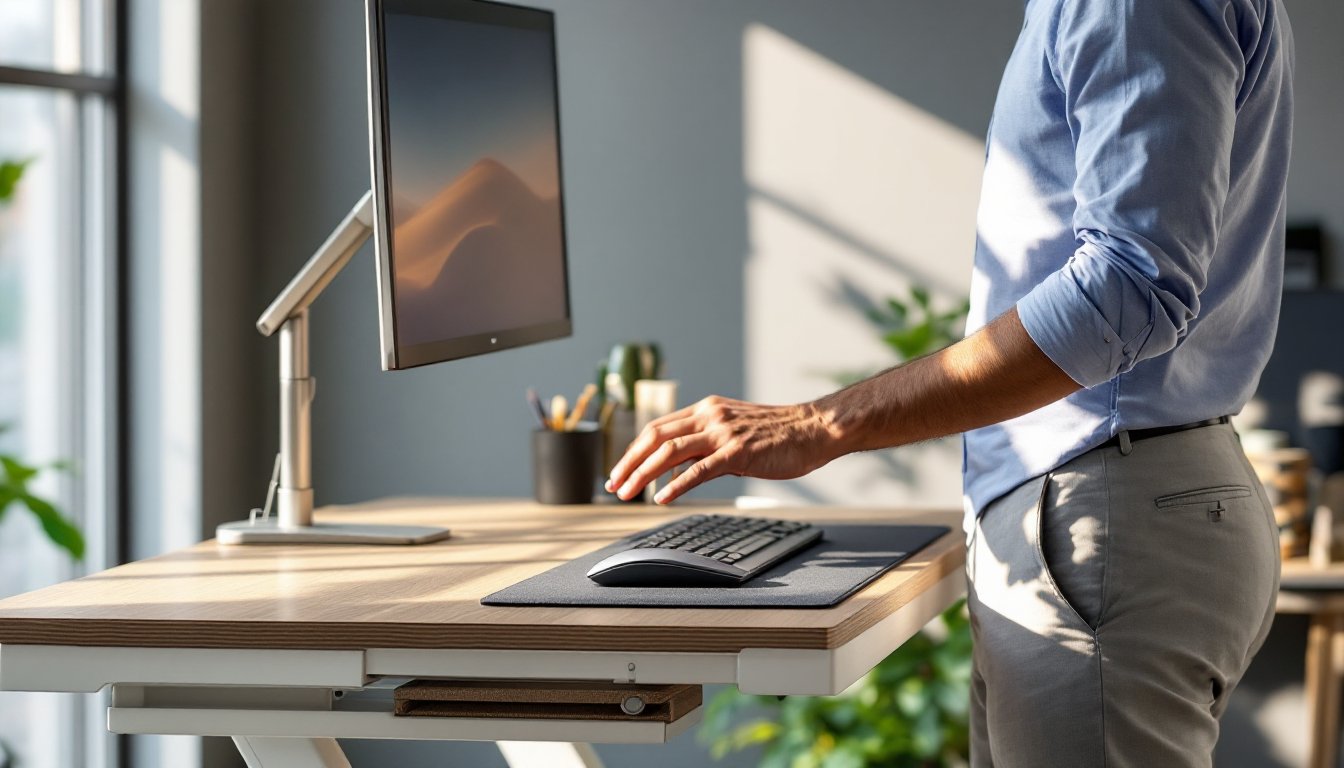
Your keyboard and mouse are extension of your hands and arms, so their placement and design directly affect comfort during long work days. Standing desk ergonomics require your elbows to sit at about 90 degrees with forearms parallel to the floor, that’s the sweet spot for reducing wrist strain and shoulder tension.
A full-size mechanical or ergonomic keyboard ($60–$200) is worth the investment if you type for hours. Mechanical keyboards offer tactile feedback and even weight distribution across the keys, while ergonomic models split the layout to keep your wrists straight and reduce ulnar deviation (inward wrist bend). Wireless versions eliminate cable clutter and let you position the keyboard exactly where you need it. Desk-mounted keyboard trays ($30–$120) are adjustable platforms that hang below desk height and tilt, allowing precision adjustment for your exact arm and wrist position. These are particularly useful on standing desks where you might adjust height frequently.
For your mouse or trackpad, consider an ergonomic vertical mouse ($30–$80) that keeps your hand in a neutral, handshake position rather than the flat, pronated grip that standard mice force. A wrist rest or gel mouse pad ($15–$40) under your mouse hand adds cushioning and keeps your wrist elevated at the correct angle. Some people prefer a trackball mouse ($40–$100), which eliminates arm movement entirely and lets your fingers control the pointer, useful if you have shoulder or elbow strain.
The key is matching your input devices to your standing desk height. When you stand, your desk surface is typically 28 to 30 inches high (similar to sitting). Adjust your keyboard to be at elbow height: your wrists should float just above the keyboard surface, not resting on it. This takes some experimentation, and you may use keyboard trays or risers to dial it in.
Comfort and Health Accessories
Standing all day is better than sitting all day, but standing still is its own problem. Without active movement or support, you’ll lock your knees, shift your weight to one foot, and end the day exhausted. Comfort accessories address this by reducing impact on your feet and encouraging subtle movement.
Anti-Fatigue Mats and Footrests
An anti-fatigue mat is a cushioned floor mat, typically 18 to 36 inches wide and made from rubber, foam, or gel, that sits under your standing desk. The mat reduces the impact of standing on hard flooring and, more importantly, encourages small shifts in your stance and subtle micro-movements that engage your leg and core muscles. Studies in ergonomic research show that anti-fatigue mats reduce fatigue and discomfort during prolonged standing and can improve circulation.
Look for mats that are at least ½-inch thick ($50–$150 for a durable model), non-slip on the bottom (so they don’t slide across your flooring), and beveled edges so you won’t trip on the perimeter. Closed-cell foam and gel-topped mats are easier to clean than open-cell foam, which absorbs spills. If you’re standing on tile or concrete, a thicker mat (¾ to 1 inch) makes a bigger difference than on carpet.
A footrest ($30–$100) is a separate accessory that provides a raised surface for one foot at a time, allowing you to shift weight and engage different muscle groups. Some footrests rock back and forth or have textured surfaces that encourage rolling your foot across them, this subtle movement keeps blood flowing to your legs and prevents the static fatigue of locked standing. Pair a footrest with an anti-fatigue mat for layered comfort: the mat under both feet for baseline cushioning, the footrest for active foot and leg engagement.
Beyond mats and rests, consider a desk bike or under-desk elliptical ($200–$600) if you want to add movement while working. These are compact pedaling machines that sit under your desk, letting you cycle quietly while you type or read. They’re not for everyone, but people who use them report less fatigue and better focus. Start with an anti-fatigue mat, then add a footrest or movement tool if you find yourself tiring during the day.
Finally, remember that standing desk accessories work best when paired with the habit of moving. Set a timer to shift your weight every 15 to 20 minutes, stretch your legs every hour, and consider alternating between sitting and standing during the day. No accessory replaces this rhythm, but the right gear makes it comfortable enough that you’ll actually stick with it.
<h2 id="” data-id=””>Final Thoughts
Building an ergonomic standing desk isn’t about buying the most expensive accessories, it’s about matching your specific needs to functional tools. Start with a monitor arm and an anti-fatigue mat, then add a keyboard solution and footrest based on how your body responds. Watch for pain signals and adjust. Most standing desk users find their ideal setup within a few weeks, and then they wonder how they ever worked without it. Your home office should support your work, not fight against it. The right accessories make that happen.